In the patient application it is possible to activate consent either at an individual level or as part of a treatment programme. Patients are presented with the consent text when they log in, and they can then approve or decline. Patients can also at any time withdraw consent via the menu in the app.
Consent for Individual Patients
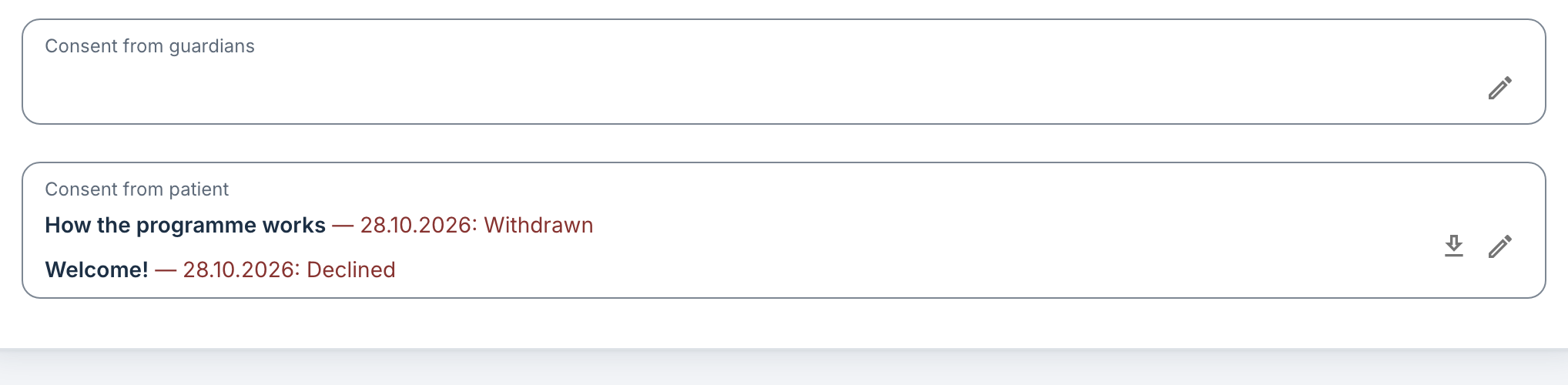
Clinicians have the possibility to activate consent for a specific patient. This is possible by navigating to the patient’s page and opening the Profile tab. At the bottom of the profile page there is a dedicated field for consent, where it is possible to select the pencil icon to add a content page that the patient can then read and approve.
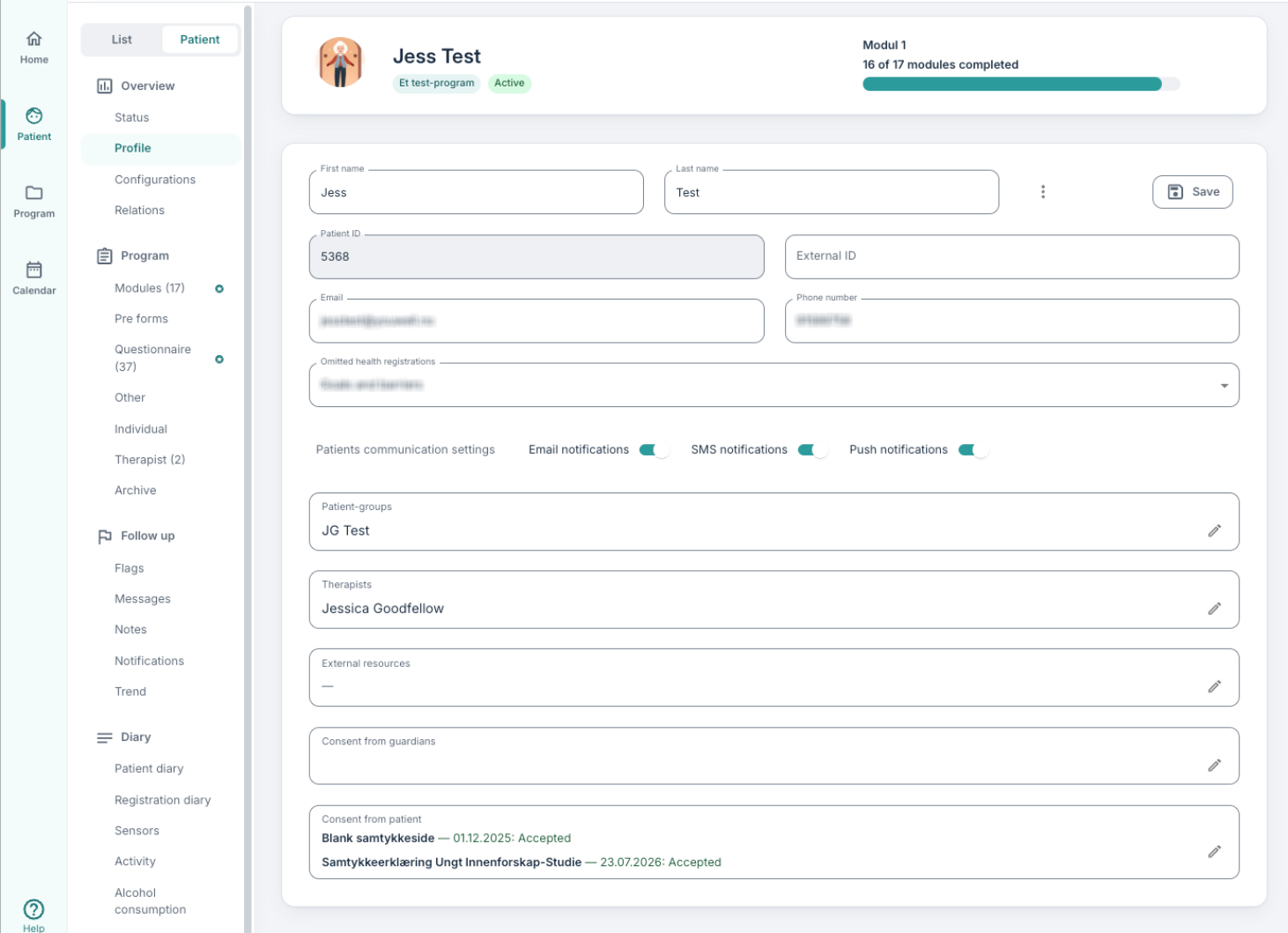
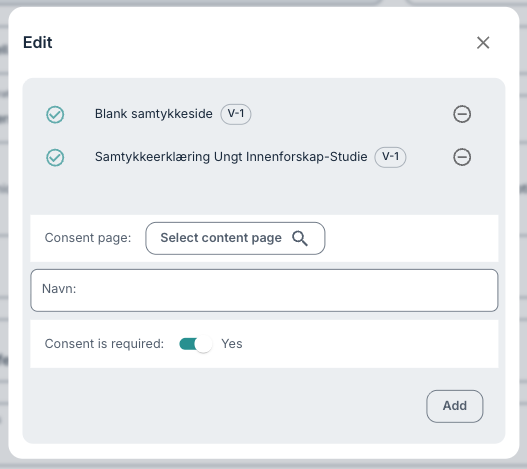
Consent often works better when a content page is used (not a questionnaire) as the question about whether consent is given or not is automatically added to the display.
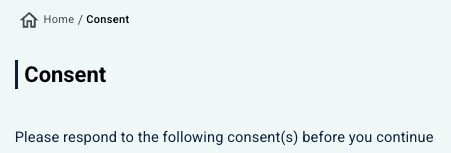
If the consent is marked as obligatory, the patient will not be able to access the content in the treatment programme until consent has been approved. In such situations the rest of the patient application will be locked, and the patient is given a clear message that consent is necessary in order to continue.
Some organisations switch on Hide patients consents for therapists, which prevents therapists from seeing whether the patient has given consent or not. In these cases, they will see a similar view to that described here, but each consent is only shown as Answered, without when or whether it was accepted.
Display for the Patient
Consent is shown to the patient when they log in. If consent is added after the patient has started the treatment, the consent page will be shown the next time the app is opened. Patients can also at any time read the consent again or withdraw it by opening the menu (the hamburger menu) and going to the Consent section.
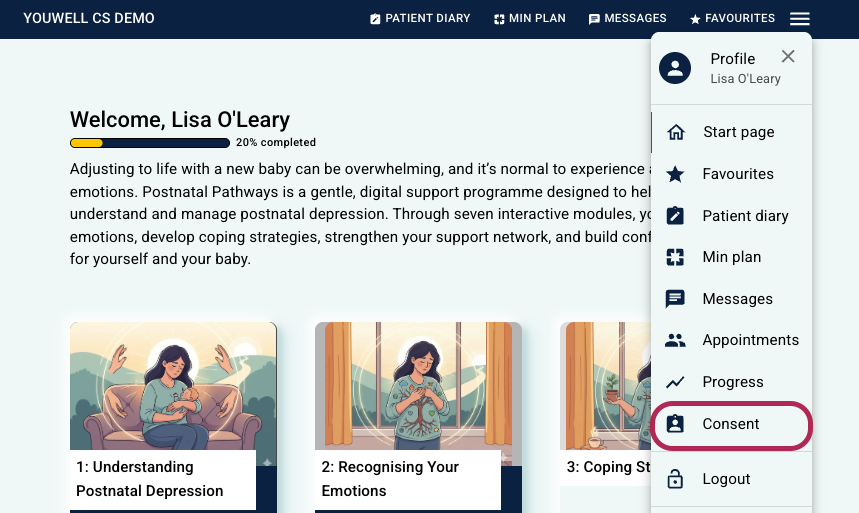
Date and time for approval of consent are automatically saved and made visible to clinicians on the patient’s profile page, under Consent from patient. This provides an overview of which patients have given consent and when it occurred.
When a patient withdraws consent
The patient withdraws a consent by opening it under Consent in the menu and selecting Withdraw consent. This takes effect straight away. The consent is then shown to the patient as not answered, so they can give it again later if they change their mind.
When the patient withdraws a consent, the withdrawal is recorded with its date and shown under Consent from patient as, for example, 12.10.2026: Withdrawn. The patient's therapists are also told in the Notifications Centre. Where consents are hidden from therapists, the withdrawal is not shown to them and they are not notified.
Downloading signed consents as PDF
A patient's signed consents can be downloaded as a PDF, for example to forward to the patient's GP. Select the download icon beside Consent from patient, choose the consents to include, and select Download PDF. Only consents the patient has answered can be included. Where consents are hidden from therapists, only users with administrator access to the patient can download them.

Consent at Programme Level
In addition to being able to activate consent for individual patients, consent can also be set up as part of a treatment programme. The content creator can place a content page as consent in the programme profile settings. By designating a page as type Consent (under Settings > Profiles), it is included automatically as part of the programme.
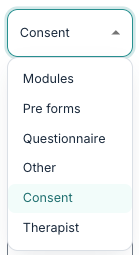
In this way it becomes possible to have a consistent consent experience for all users of the programme, without each individual therapist adding consent manually.
Data Export
Information about which patients have given consent, when this occurred, and when any consent was withdrawn, can be extracted under Data Export on the Reporting tab. Read more about this in the article on Data Export: Patients.
Was this article helpful?
That’s Great!
Thank you for your feedback
Sorry! We couldn't be helpful
Thank you for your feedback
Feedback sent
We appreciate your effort and will try to fix the article